RTTY software with WSJT-X-style setup
RTTY reception, transmission and
QSO logging,
all on one screen.
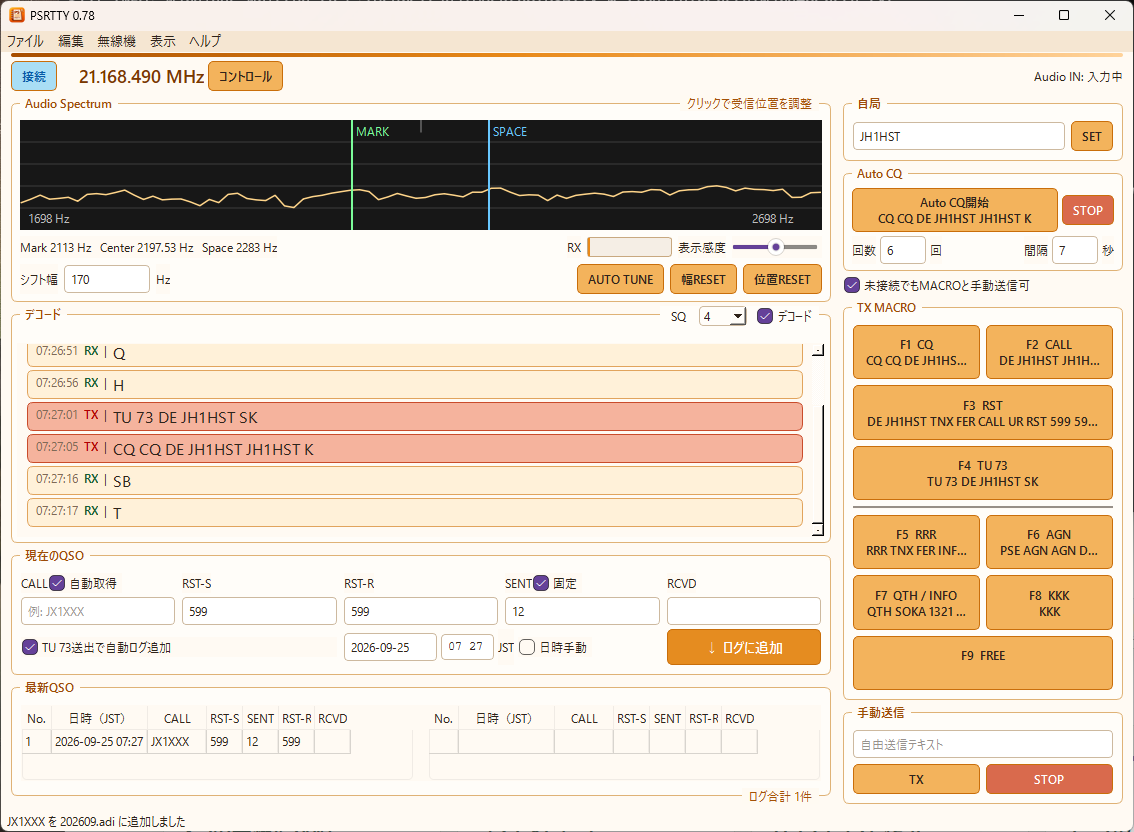
PSRTTY for Windows combines spectrum and cross-scope monitoring, macro or manual transmission, and ADIF logging. A separate control window handles frequency and radio operations.
PSRTTY main and control windows
CONTROL
Radio frequency controls at a glance.
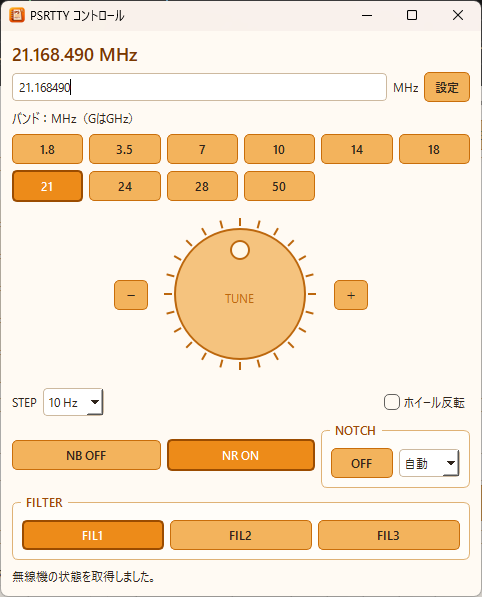
The Control window groups frequency entry, band selection, jog, STEP, NB, NR, NOTCH and FILTER. View frequency and supported filter operations together.
Available controls depend on the radio and mode. Unsupported or unreadable controls are disabled.
PSRTTY Control window
CROSS SCOPE
See RTTY tuning through signal traces.
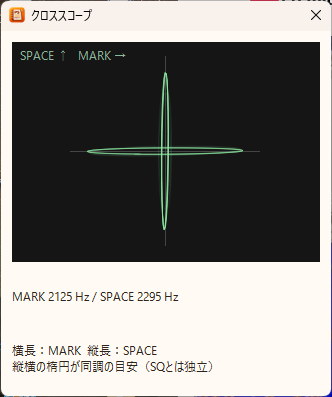
Open Cross Scope from the main window to view MARK and SPACE in a separate window. Thin horizontal and vertical ellipses indicate tuning.
The latest and previous traces overlap; the previous trace fades within about 0.7 seconds. Main spectrum width is unchanged. Ver0.85 added C tuning to show the received audio offset.
This audio-derived aid is independent of SQ and decoding settings; it is not a calibrated signal meter.
Cross scope
SUB DECODER
Sub-decoders: receive other signals too.
PSRTTY sub-decoders A/B (detail)
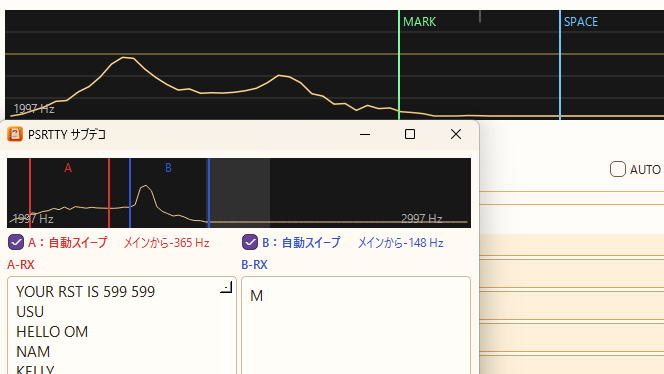
Receive-only decoders A and B run alongside the main decoder. A is red and B blue on the spectrum, making both tuning positions and decoded text easy to compare.
Find signals with automatic sweeping or adjust manually. Click a decoded line to copy a recognized callsign into the main CALL field.
Sub-decoders only receive; they neither transmit nor log QSOs automatically.
PROFILES
Switch radios with Profiles.
Store radio, audio and station settings in up to six Profiles. Switch from the button at the top right of the main window.
Switching while connected disconnects the current radio and attempts the new connection. If it fails, the selected Profile remains active and shows Disconnected.
Copy, rename or delete Profiles in Settings. Older settings migrate into Profile1.
Profile switching in the main window (detail)
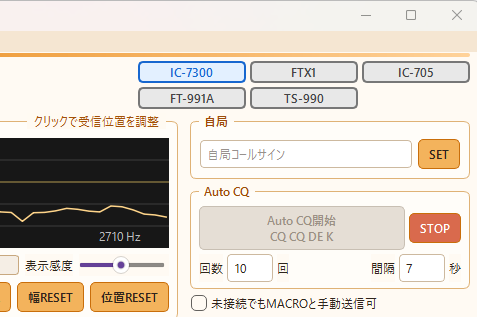
Adjust the receive position
Check MARK and SPACE on the spectrum; align them by clicking, dragging or AUTO TUNE.
Get started with USB
Connect one PC and one radio by USB, select the model and audio devices, and verify the connection. Multiple radios require explicit COM port settings.
View supported radios →Macros and Auto CQ
F1–F9 transmission macros and manual sending. Auto CQ repeats F1 the configured number of times.
Logs and contest files
Save ADIF and daily raw logs, and create Cabrillo contest files.
FIRST STEP
Start with the in-app Initial Setup Guide.
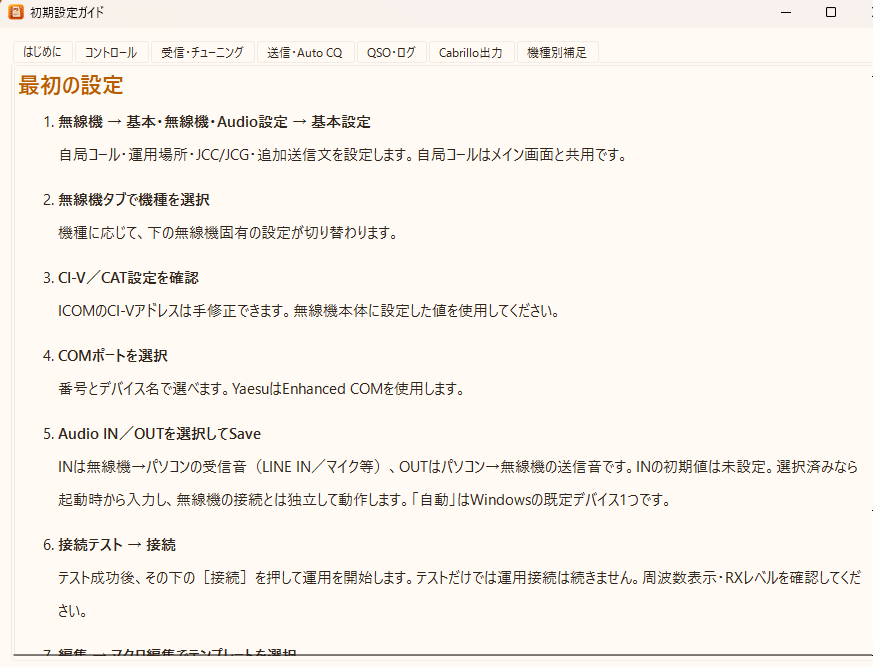
Open Help → Initial Setup Guide after launch. Follow the tabs through station details, radio and COM ports, Audio IN/OUT and connection checks.
Guide tabs also cover Control, receiving and tuning, transmission and Auto CQ, QSOs and logs, and Cabrillo export.
Initial Setup Guide
DOWNLOAD
Download PSRTTY
Find the current release and update instructions on the download page.